Friday, January 28, 2011

Partition a USB Flash Drive in Windows XP


One way to Partition a USB Flash Drive from Windows XP and mark it active "bootable". Windows detects Flash Drives as "Removable Disks" and flash drives are typically shipped formatted as a "Super Floppy" (USB-FDD without a partition table) . The Windows built in format utility cannot create a partition table on Removable Disks. Furthermore, the diskpart utility in Windows XP will not allow you to partition Removable Media, although diskpart does work for partitioning a Flash Drive from Windows Vista/7.

To address the inability to Partition a Flash Drive in Windows XP, you need to use a third party low level partitioning tool such as BOOTICE, created by Pauly. BOOTICE Home Page

Note: I partition my flash drives as USB-HDD (with a partition table), simply because my computers support booting from Flash Drives formatted to be seen as a USB Hard Disk.

One way to Partition a Flash Drive from Windows
  1. Download BOOTICE, unzip, and run BOOTICE.EXE
  2. Make sure your "USB Flash Drive" is set as the Destination Disk
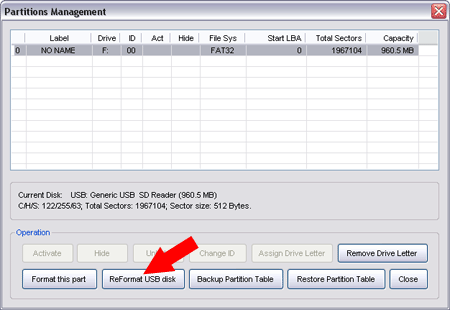
  3. Click Parts Manage 
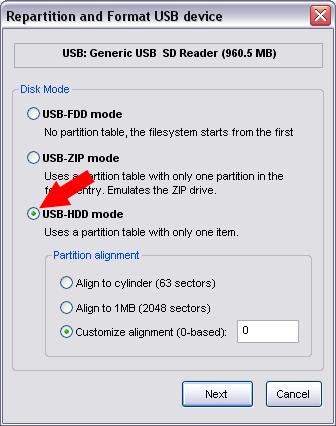
  4. Click ReFormat USB Disk
  5. Select USB-HDD mode, and click Next 
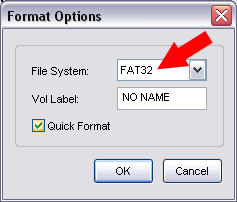
  6. Select Format as Fat32, and click OK

FIGURES :
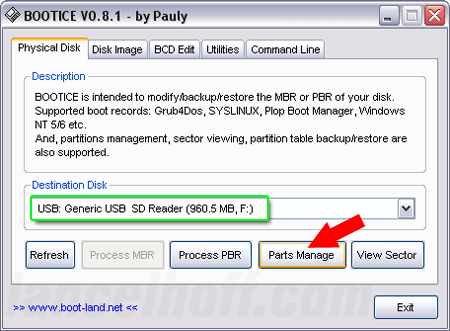
BOOTICE Manage Partition

BOOTICE Format USB

BOOTICE Set USB-HDD Mode

BOOTICE File System Fat32

You should now have an active "bootable" USB-HDD Fat32 formatted Flash Drive, containing a partition table with a single partition. You should be able to Boot It as a Hard Drive.

Restore GRUB2 after installing Windows


How I Restored GRUB2 after a Windows 7 InstallGRUB2 (Grand Unified Bootloader)  is a universal bootloader used by Ubuntu and other Linux Distributions. If you have a Linux Distribution installed on a partition, and attempt to  install Windows alongside it, your GRUB bootloader will be overwritten by the Windows bootloader, and your computer will only boot into Windows.

Recovering the GRUB2 Bootloader after a Windows Install  is simple. When finished, your Bootloader should detect all installed Operating Systems and automatically add a bootable menu item for each of them.

Note: This GRUB2 Installation process assumes that a Linux Partition still exists. If you overwrote Linux with Windows, this tutorial will not work for you, as there is no Linux system to recover boot.

How to Restore GRUB2 after installing Windows:
  1. Boot from an Ubuntu Live CD or Live USB
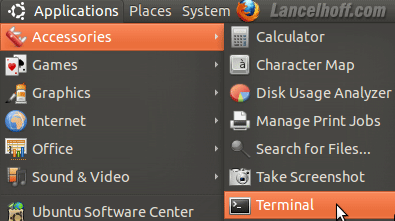
  2. Once up and running, Open a Terminal Open a Terminal
  3. Type sudo su (press enter after typing each command)
  4. Type fdisk -l 
  5. Type sudo su and then fdisk -l
  6. Note which device contains your Linux partition (IE: /dev/sda1) Locate your Linux Device
  7. Type mount /dev/sdx# /mnt (replacing x# with your actual device and partition number)
  8. Type mount --bind /dev /mnt/dev
  9. Type mount --bind /proc /mnt/proc
  10. Type cp /etc/resolv.conf /mnt/etc/resolv.conf
  11. Type chroot /mnt
  12.  mount and chroot
  13. Type grub-install --recheck /dev/sdx (replacing x with your actual device)
  14. Type reboot (to reboot your PC) Install grub 2 and reboot
Make sure to remove your Live USB or CD. Upon reboot you should be presented with a GRUB2 menu. However, Windows is missing. Now, I show you how to fix that.

Making GRUB 2 detect Windows Installs:
  1. Proceed to boot into your Linux environment.
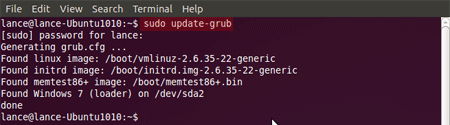
  2. Open a terminal and type sudo update-grub (enter your root password when prompted) sudo update-grub

If all went well, grub should have updated it's menu entries to reflect what it detected. Including existing Windows partitions.